

Whether it’s about collecting leads, offering support or receiving feedback, a well-designed contact form is the ideal tool to facilitate these interactions. In this article, we will explore what a contact form is, its purpose, and how to create an optimized one, even without technical skills, thanks to an intuitive form builder. You will discover practical examples, best practices, and how to avoid common mistakes.
1. What is a Contact Form?
A contact form (or contact module) is a digital tool integrated into a web page that allows users to send structured information to a company, professional, or organization. Imagine it as a digital bridge connecting the visitor to the recipient: instead of requiring the user to manually open their email box or search for an address, the module provides an intuitive interface with predefined fields to fill out, such as name, email, phone, message, and other contextual data.
Main Components of a Contact Form
Each module is designed to collect specific information based on the business needs. Here are the most common fields and their purposes:
- Name and Surname: Identifies who is sending the request.
- Email or Phone: Allows for quick recontacting of the user.
- Subject/Reason for Contact: Helps categorize the request (e.g., support, sales).
- Message: Space to describe the request in detail.
- Custom Fields: Job role, company name, industrial sector, or dropdown menus to select services of interest.
Why Choose a Contact Form Instead of a Traditional Email?
Before the advent of digital forms, users had to send manual emails, a process often prone to errors: forgetting essential information, incorrect addresses, or overly generic messages. Contact forms solve these problems:
- Clear Structure: Guides the user to enter all necessary data, avoiding omissions.
- Organized Data: Information arrives in a standardized format, easy to archive or import into CRM.
- Optimized User Experience: Filling out a form takes only a few seconds, especially if it is responsive and mobile-friendly.
Additional Advantages of Modern Forms
Today, contact forms do more than just collect data. They can include advanced features such as:
- Anti-spam Protection: CAPTCHA, honeypot (hidden fields), or integrations with services like Google’s reCAPTCHA.
- Automatic Confirmation: A thank-you page or summary email reassuring the user that the submission was successful.
- Integrations: Direct connection to marketing tools (Mailchimp), CRM (HubSpot), or notifications via Slack.
The Evolution of Forms: From Paper to Digital
Before the web, companies used paper forms to collect data during fairs or events. Today, digital forms replicate this function more efficiently: they reduce costs, speed up the process, and allow real-time data analysis. For example, a trade show contact collection form can be shared via QR code, allowing visitors to enter their data directly from their smartphone while the organizer views the information in a Google Sheets document.
Why Use a Form Builder?
Creating a form from scratch requires HTML, CSS, and PHP skills, plus hours of development to handle security and integrations. With a form builder, however, you can:
- Choose pre-defined templates and customize them in a few clicks.
- Add conditional fields (e.g., show a specific menu if the user selects “B2B”).
- Automate responses and notifications without writing a line of code.
- Ensure GDPR compliance with checkboxes for data processing consent.
The contact form is much more than a simple “contact page”: it is a strategic tool to convert visitors into leads, improve user experience, and optimize request management. Whether you manage a personal blog or a global company, integrating a well-designed module (perhaps with the help of a form builder) can make the difference between a lost message in the inbox and a qualified contact ready to become a customer.
Pro Tip: With Primeforms, you can create professional contact forms in less than 5 minutes, with advanced features, ready-made templates, and smart integrations. Discover how to get started.
2. What is the Purpose of a Contact Form?
Contact forms are versatile tools that meet different needs, becoming a strategic point of contact between users and companies. Here are the main functions in detail:
- Generate Leads: Each submission represents a potential customer. A well-optimized contact form captures essential data (such as email or phone number) to feed the sales funnel. For example, a module dedicated to a free ebook may require name and email, transforming an anonymous visitor into a qualified lead to follow up with targeted campaigns.
- Customer Support: Reduces the load on channels like phone or live chat. Users can describe the problem in a structured way (with fields like “Order Number” or “Type of Assistance Requested”), allowing the team to prioritize and manage requests efficiently.
- Feedback Collection: Key tool to improve products or services. A survey module with specific questions (e.g., “How satisfied are you with our service? From 1 to 5”) provides analyzable data for data-driven decisions.
- Reservations or Registrations: Automates repetitive processes. A webinar module may include fields like “Preferred Date” and “Topics of Interest,” syncing with a shared calendar to avoid overlaps.
A concrete case is the trade show contact collection form: during an event, instead of collecting business cards, you can invite the audience to fill out a digital form with fields like “Company”, “Role”, and “Specific Interests”. These data, organized in a CRM, allow you to segment leads post-event and personalize follow-up (e.g., send technical material to those who selected “Interest in B2B Products”).
3. What Are Contact Information?
Contact information is the data users voluntarily share through the form, but not all have the same value. Here’s how to classify them:
- Basic Data: Name, surname, email, and phone are essential to identify the user and recontact them. Attention: ask only what is needed. If you don’t offer phone services, avoid the “Phone Number” field to not reduce the completion rate.
- Specific Data: Depends on the context. A quote request form might include “Estimated Budget” or “Project Type”, while a job application form might require “LinkedIn Profile”. This data helps personalize the response and qualify the lead.
- Preferences: Newsletters, marketing consents, or contact preferences (e.g., “Do you prefer to be contacted via email or WhatsApp?”) not only respect GDPR but also create a tailored experience. A user who chooses to receive offers via email will be more receptive to targeted campaigns.
Privacy and GDPR: Data collection must be transparent and minimal. Every form should include:
- A brief note on how the data will be used (e.g., “We will use your email only to send you the requested document”).
- Explicit checkboxes for consents (never pre-filled).
- A link to the complete privacy notice.
Practical example: a newsletter subscription form should only ask for email and consent, avoiding redundant fields like physical address unless strictly necessary.
4. Contact Form Example: Types and Use Cases
Contact forms are not all the same: their structure varies based on specific objectives. With Primeforms, you can customize every detail using advanced features like logical conditions and real-time statistics. Here are some practical examples:
- Basic Contact Module: Ideal for personal websites or blogs. Includes name, email, message, and a field to accept privacy. With Primeforms, you can add a logical condition: if the user selects “Urgent Request”, the form sends an immediate SMS notification to the team.
- Module for Customer Support: Includes fields like “Order Number”, “Type of Problem” (dropdown with options: technical, billing, etc.) and the possibility to attach screenshots. Thanks to the detailed statistics of Primeforms, you can monitor average response times and identify the most frequent issues.
- Module for Events (e.g., Trade Shows or Webinars): Besides “Company” and “Role”, you can add conditional fields. For example, if the user selects “Interest in B2B Products”, an additional menu appears to specify the sector. With Primeforms, all data automatically syncs with a CRM like Salesforce, while advanced analytics show in real-time how many leads have been collected.
- Module for Surveys or Feedback: Uses scales from 1 to 5, multiple checkboxes, and free-comment fields. Logical conditions allow showing different questions based on previous answers (e.g., if a user rates a service below 3, ask “What can we improve?”).
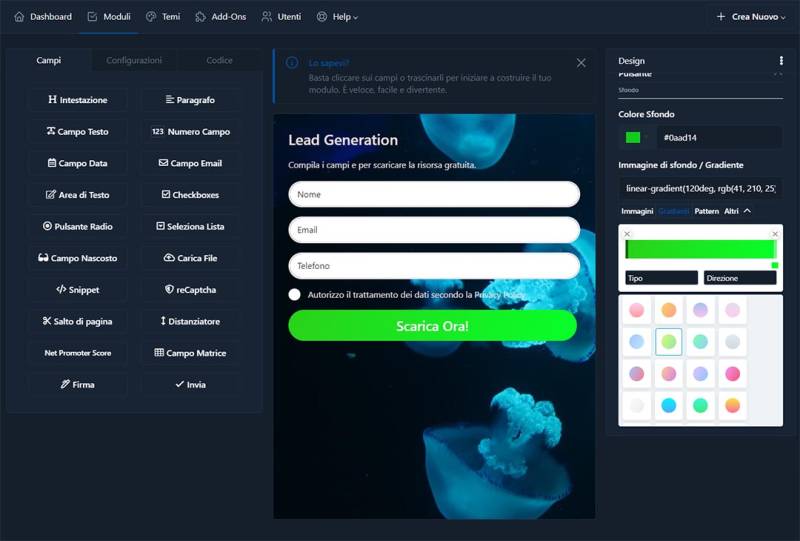
5. How to Create a Contact Form with HTML and PHP (But Why Choose a Form Builder?)
Creating a form from scratch requires technical skills and time. Here’s a basic example:
HTML:
PHP:
Copy to Clipboard
However, this solution has limitations:
- No built-in anti-spam protection.
- No management of conditional fields without additional coding.
- Manual statistics (you would need to create a separate database).
Why is Primeforms the Best Choice?
- Logical Conditions Without Code: Show or hide fields based on user choices with a visual editor.
- Advanced Statistics: Monitor real-time conversion rates, drop-offs, and peak hours.
- Automatic Security: Bot protection, data encryption, and integrated GDPR compliance.
- Ready-to-Use Integrations: Connect the form to Google Analytics, Zapier, or Slack with a click.
6. How to Create a Contact Module in 5 Minutes with Primeforms
With Primeforms, creating a professional contact form is simple and fast. Follow these steps:
- Choose a Template: Access the Primeforms library and select a pre-configured model (e.g., “Quick Contact”, “Event Registration”).
- Customize Fields: Use the drag-and-drop editor to add, remove, or modify fields. Insert:
- Text fields, dropdowns, or checkboxes.
- Logical Conditions: E.g., “If the user selects ‘Other’ in the menu, show an additional text field”.
- Branding elements: logo, corporate colors, custom fonts.
- Configure Notifications: Set who receives new contact alerts (via email or SMS) and customize the confirmation message for the user.
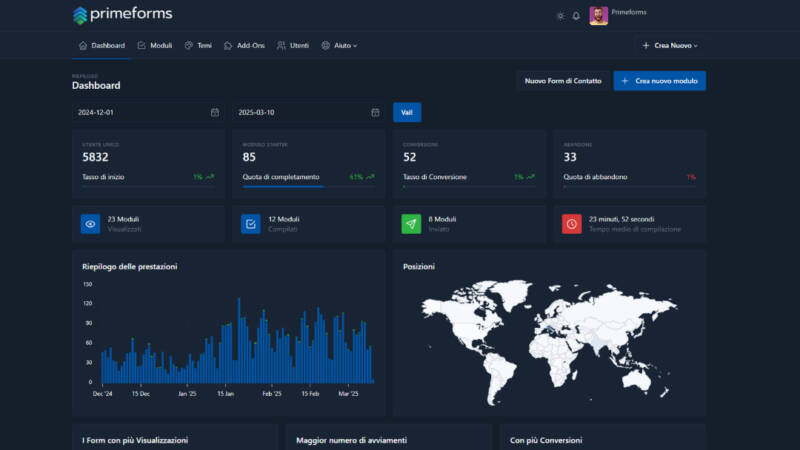
- Activate Statistics: Enable the Primeforms dashboard to view:
- Daily completions count.
- Abandonment percentage for each field.
- User geographic map (if collecting location data).
- Integrate and Publish: Choose whether to embed the form on your site via HTML code, share it via link, or integrate it into a Primeforms landing page. All data updates automatically in your account.
Advanced Usage Example: Need a module for an online course? With Primeforms, you can:
- Add a field to select the course of interest.
- Show a discounted price if the user enters a promotional code (thanks to logical conditions).
- Link the form to Stripe for direct payments.
7. Best Practices for Effective Forms
Creating an effective contact module requires attention to both user experience and business objectives. Here’s how to optimize it:
- Keep It Short and Targeted: Fewer fields mean more conversions. For example, for a newsletter module, ask only for email and privacy consent. According to a HubSpot study, forms with 3-5 fields have a conversion rate 25% higher than longer ones. Use professional tools like Primeforms to add conditional fields: show additional questions only when necessary (e.g., “Specify your sector” only if the user selects “B2B”).
- Clear and Action-Oriented CTAs: Replace the generic “Submit” with contextual buttons like “Get Free Quote” or “Unlock Ebook”. This increases engagement by 15%, as demonstrated by A/B tests conducted on landing pages.
- Responsive and Mobile-Friendly Design: Over 60% of forms are filled out on mobile. Ensure fields are spacious, fonts readable (minimum 16px), and buttons easy to click.
- Visual Elements That Guide the User: Intuitive icons (e.g., an envelope next to the email field) or contrasting colors for buttons reduce filling anxiety. Note: maintain a balance between aesthetics and simplicity to not distract the user.
- Transparent Privacy and GDPR Compliance: Include non-pre-filled checkboxes for consents and a link to the full privacy notice.
8. Common Mistakes to Avoid
The most common errors that compromise the effectiveness of contact forms.
- Overloaded Forms with Fields: Each additional field reduces the completion rate by 10-15%. Solution? Use Primeforms’ logical conditions to show only relevant fields. E.g., if a user selects “Private” instead of “Company”, hide fields related to VAT.
- Lack of Post-Submission Feedback: A thank-you page or confirmation email (e.g., “Thanks, Marco! You will receive the quote within 24 hours”) reassures the user and reduces the risk of duplicate follow-ups.
- Disorganized or Illegible Design: Incorrect alignments or faded colors confuse the user. Use pre-optimized templates from Primeforms, with responsive grids and verified contrasts (e.g., black text on a white background with an orange button).
- Superficial Testing: 20% of forms have bugs on less-used browsers like Safari or Firefox.
9. Why Choose a Professional Form Builder?
In addition to saving hours of development, professional contact form builders offer unique advantages to compete digitally:
- Detailed and Actionable Analytics: Monitor not only conversions but also advanced metrics such as:
- Average completion time.
- Fields with the highest abandonment rate.
- Lead geolocation (for localized campaigns).
- Integrated Security and Automatic Updates: Customizable anti-spam protection with CAPTCHA, SSL encryption, and daily backups. Each update includes new features (e.g., integration with ChatGPT for automatic responses).
- Code-Free Integrations: Connect the form to tools like Google Sheets (to store data), Stripe (for payments), or Slack (for instant team notifications).
- Unlimited Scalability: Whether you manage 10 or 10,000 monthly submissions, Primeforms adapts resources in real-time, avoiding crashes or slowdowns.
Conclusion
In a market where user attention lasts less than 8 seconds, a well-designed contact form is your secret weapon to capture qualified leads. While DIY solutions in HTML or PHP require technical skills and constant maintenance, Primeforms transforms form creation into an intuitive, fast, and data-based process.
With features like logical conditions, real-time analytics, and AI-driven integrations, you can:
- Reduce operational costs by 40% by automating workflows.
- Increase conversions by 30% with personalized user experiences.
- Make informed decisions thanks to detailed reports and predictive trends.
Ready to Turn Visitors into Customers?
Try Primeforms for Free and access professional templates, advanced tools, and dedicated support.

