

Google Forms is an incredibly versatile tool that has become indispensable for businesses, educators, and individuals looking to streamline data collection and analysis. Whether you’re conducting surveys, collecting RSVP responses for events, or gathering feedback on a recent project, Google Forms provides an easy-to-use, customizable platform that meets a wide range of needs. In this article, we will explore the features and capabilities of Google Forms, provide tips for creating effective forms, and answer common questions to help you maximize this powerful tool’s potential in your personal or professional endeavors.
What is Google Forms?
Google Forms is a free, user-friendly tool provided by Google that allows users to create, distribute, and analyze online surveys, quizzes, and data collection forms. Designed for simplicity and accessibility, it is part of the Google Workspace suite and integrates seamlessly with other tools like Google Sheets and Google Drive . Whether you’re an educator, business professional, or individual, Google Forms simplifies the process of gathering feedback, conducting assessments, or managing events. Its intuitive interface and customizable features make it a versatile solution for both simple and complex data collection needs.
Key Features of Google Forms
- Ease of Use : No technical expertise is required to create professional-looking forms.
- Integration : Automatically sync responses to Google Sheets for real-time analysis.
- Customization : Adjust themes, colors, and logos to match your brand or personal style.
- Collaboration : Share forms with others for co-editing or delegate response management.
- Advanced Options : Enable quizzes with automatic grading, set time limits, and restrict responses.
How to Access Google Forms
Google Forms is accessible via a Google account , and the process to create a form is straightforward:
- Log in to Google Drive : Visit drive.google.com and sign in.
- Create a New Form : Click the “New” button in the top-left corner, then select “Google Forms” from the menu.
- Start Building : Choose a template or start from scratch to design your form.
If you’re new to Google Forms , the “Get started with a template” option provides pre-designed layouts for common use cases like surveys, quizzes, and event RSVPs.
See also this article: What is a Form or Module
Creating a Form: Step-by-Step Guide
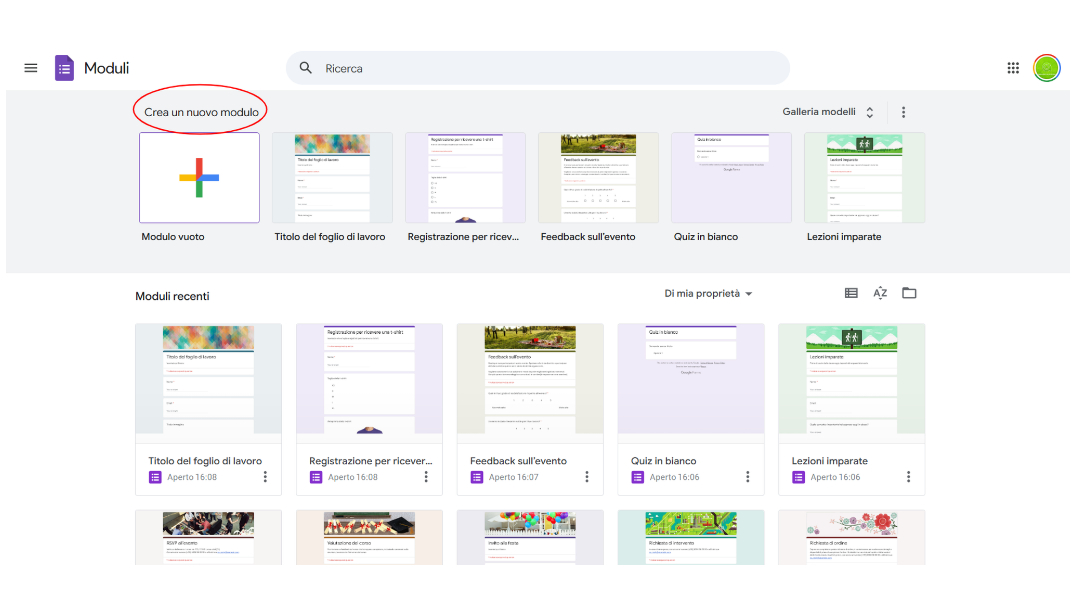
Step 1: Design the Basics
- Title and Description : Give your form a clear title (e.g., “Customer Feedback Survey” ) and a brief description explaining its purpose.
- Question Types : Choose from options like short answer , multiple choice , checkboxes , dropdown menus , and paragraph text .
Step 2: Customize the Appearance
- Theme : Select a color scheme or upload your brand’s logo via the “Theme” menu.
- Logo : Add a header image to reinforce your brand identity.
- Font and Text : Modify fonts for readability and style consistency.
Step 3: Configure Advanced Settings
- Response Limits : Restrict submissions to one per user or set a response deadline.
- Email Collection : Enable this to track responses from specific audiences.
- Quiz Mode : Turn on “Quiz” settings to assign points and provide instant feedback.
Step 4: Preview and Share
- Preview : Test the form to ensure questions are logical and free of errors.
- Share : Distribute the form via email, social media, or embed it on websites using the “Send” button.
Advanced Features: Beyond Basic Forms
Creating Quizzes with Google Forms
Google Forms excels in educational settings with its quiz mode , which allows you to:
- Automate Grading : Assign scores to questions and provide instant feedback.
- Set Correct Answers : Specify which options are correct for multiple-choice questions.
- Add Feedback : Include explanations for right/wrong answers to enhance learning.
Example Workflow :
- Enable “Quiz” mode in form settings.
- Add questions with “Set Answer Key” to define correct responses.
- Customize feedback messages (e.g., “Great job! This answer demonstrates a strong understanding…” ).
Building Surveys for Data Analysis
For market research or customer insights, Google Forms integrates with Google Sheets to:
- Automate Data Collection : Responses populate a spreadsheet in real time.
- Analyze Trends : Use pivot tables or charts to visualize data patterns.
- Export Data : Download results as CSV files for further analysis in tools like Excel.
Pro Tip : Use “Required Questions” to ensure critical data is always captured.
Integrations and Add-ons to Enhance Functionality
Google Sheets Integration
- Automatic Sync : Responses are saved to a spreadsheet as they’re submitted.
- Formula Automation : Use
=QUERY()or=FILTER()functions to sort and analyze data. - Charts : Generate graphs (e.g., pie charts, bar graphs) to highlight key insights.
Third-Party Add-ons
- Auto-Responder : Send automated thank-you emails or confirmation messages.
- Time Limits : Set deadlines for quizzes or surveys.
- Zapier Integration : Connect forms to CRMs (e.g., HubSpot), project management tools (e.g., Trello), or marketing platforms (e.g., Mailchimp).
Security and Privacy Settings
- Password Protection : Add a password to restrict access to sensitive forms.
- Response Limits : Prevent spam submissions by limiting responses.
- Data Encryption : All data is stored securely in Google’s servers, compliant with GDPR and other regulations.
Practical Examples and Templates
Event Planning with Google Forms
- RSVP Template : Use predefined fields to collect attendee details (e.g., name, dietary preferences).
- Confirmation Emails : Automatically notify participants of event updates.
Customer Feedback Surveys
- Net Promoter Score (NPS) : Ask, “How likely are you to recommend our service?” with a scale of 1–10.
- Open-Ended Feedback : Include paragraph questions to gather qualitative insights.
Classroom Quizzes
- Self-Grading Exams : Save time grading by enabling “Quiz Mode” .
- Progress Tracking : Use Google Sheets to monitor student performance over time.
See also: Contact Form: Complete Guide for Effective Modules
Tips for Optimizing Google Forms
1. Simplify Questions for Clarity
Avoid complex language or technical jargon to ensure your audience understands each question effortlessly. For example, replace lengthy phrases like “Please indicate your level of satisfaction with our service” with concise alternatives like “How would you rate your experience?” . Clear questions reduce confusion, minimize drop-off rates, and improve data accuracy. Additionally, avoid double-barreled questions (e.g., “How satisfied are you with our product and customer service?” ), as they force respondents to provide vague answers.
2. Test Before Publishing
Always preview your form to catch errors in logic, formatting, or functionality. Check how it appears on mobile devices , as over 50% of users may access it via smartphones. Test conditional logic (e.g., skip questions based on previous answers) and ensure required fields are properly configured. Share the form with a colleague for a second perspective—fresh eyes often spot issues you might miss.
3. Use Keywords in Titles and Descriptions
Incorporate terms like “survey” , “quiz” , or “feedback” in your form’s title and description to improve searchability within Google Drive . For example, name your form “2023 Customer Satisfaction Survey – Q3” instead of “Untitled Form” . Add tags like #EventRSVP or #EmployeeFeedback in the description to organize forms and make them easier to retrieve later.
4. Leverage Sections for Better Flow
Break long forms into logical sections using headers like “Personal Information” or “Product Feedback” . This reduces overwhelm and guides respondents through a structured journey. Use the progress bar feature to show completion status, keeping users motivated. For example, group demographic questions at the start and detailed feedback questions toward the end.
5. Keep Forms Short and Focused
Limit your form to 5–10 questions to maximize completion rates. Prioritize essential fields and use skip logic to hide irrelevant questions. For example, if a user selects “No” to “Have you used our product?” , skip technical follow-up questions. If additional data is needed, consider a follow-up form instead of extending the original.
Bonus Tip: Mobile Optimization
Ensure buttons, images, and text boxes are mobile-friendly. Avoid small fonts or crowded layouts. Use dropdown menus or multiple-choice formats to simplify input on smaller screens.
By applying these strategies, you’ll create Google Forms that are user-friendly, efficient, and optimized for high engagement.
Frequently Asked Questions (FAQs)
How Do I Create a Form in Google Forms?
- Go to drive.google.com .
- Click “New” > “Google Forms” .
- Add questions and customize the design.
Can I Embed Images in My Form?
Yes! Use the “Image” button in the editor to add logos or visual aids.
How Do I Share a Form?
- Copy the “Share” link and distribute it via email or social media.
- Embed the form on websites using the “Embed” code.
Can I Edit Responses After Submission?
No, but you can disable future responses in the “Settings” menu.
Is Google Forms Free?
Yes! Basic features are free with a Google account. Advanced add-ons may require paid subscriptions.
Conclusion
Google Forms is an indispensable tool for anyone needing to collect data, conduct surveys, or engage audiences. Its user-friendly design, robust features, and seamless integrations make it ideal for educators, businesses, and individuals alike. By leveraging templates, customization options, and advanced settings, you can transform raw data into actionable insights. Whether you’re planning an event, assessing student performance, or gathering customer feedback, Google Forms empowers you to streamline workflows and enhance decision-making.
Start exploring its capabilities today—your next survey, quiz, or form is just a few clicks away!
